
Bypassing Microsoft 365 Outbound Sending Limits with Xeams Direct Delivery
Microsoft imposes strict Recipient Rate Limits (usually 10,000 recipients per day) and Message Rate Limits (30 messages per minute) on Exchange Online to prevent spam. For organizations sending high-volume newsletters or legitimate bulk mail, these caps can be a major roadblock.
By using Xeams, a powerful multi-threaded email server, you can bypass these Microsoft limits entirely. Instead of relaying mail through Microsoft's smart hosts, you configure Xeams to deliver messages directly to the final recipient's server via MX lookups.
Email Flow
The following image displays the current email flow, where every message goes through Microsoft.

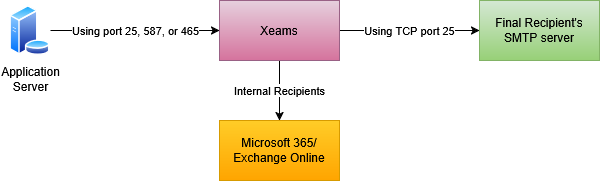
Modified Email Flow
The following image displays the email flow after Xeams is introduced in the picture.
Part 1: Bypassing Microsoft by Sending Directly
The most effective way to "bypass" the limit is to stop using Microsoft as your outbound relay for bulk traffic. When Xeams is the primary sender, it acts as its own MTA (Mail Transfer Agent), delivering mail directly to servers like Gmail, Yahoo, or Outlook.com.
1. Configure Xeams for Direct Delivery
By default, Xeams performs an MX Lookup for any domain it doesn't recognize as local. To ensure it doesn't try to hand mail back to Microsoft:
- Remove Smart Hosts: Ensure no global Smart Host is configured under Server Configuration > Manage Smart Hosts.
- Enable SMTP Relaying: Go to the Relaying tab in SMTP Configuration. You must authorize your internal application or Exchange server's IP address to relay through Xeams, or use SMTP Authentication.
- Port 25 Access: For direct delivery to work, your ISP must allow outbound traffic on TCP Port 25. Many residential and some business ISPs block this; you may need to request a "port 25 unblock" or use a static IP that allows mail traffic.
2. Routing Bulk Traffic from Exchange to Xeams
To move the "heavy lifting" away from Microsoft, you can create a Send Connector in Exchange Online that routes specific outbound traffic (or all traffic) to Xeams rather than to the internet.
- Create a Connector: In the Exchange Admin Center, go to Mail Flow > Connectors. Create a connector from "Office 365" to "Your organization's email server."
- Smart Host: Enter the Public IP address where your Xeams instance is listening.
- Transport Rule: Create a rule that says: "If the sender is [Bulk Account], redirect the message to the [Xeams Connector]." This ensures regular user mail stays on Microsoft while bulk mail goes through Xeams.
Part 2: Configuring SPF for Direct Delivery
When you stop using Microsoft as your relay, you become the "originating" server. If your SPF (Sender Policy Framework) record only includes Microsoft, your emails will be rejected as spam.
How to Update Your SPF Record:
You must add your Xeams server's public IP address to your DNS TXT record.
- Standard Microsoft Record:
v=spf1 include:spf.protection.outlook.com -all - Modified Record for Xeams:
v=spf1 ip4:YOUR_XEAMS_IP include:spf.protection.outlook.com -all
This tells receiving servers that both Microsoft and your specific Xeams server are authorized to send mail for your domain.
Part 3: Signing Outbound Mail with DKIM
DKIM (DomainKeys Identified Mail) adds a cryptographic signature to your emails. Since Xeams is now the last server to "touch" the email before it hits the internet, Xeams must perform the signing.
Steps to Configure DKIM in Xeams:
- Enable DKIM: In the Xeams Admin Console, go to Filter Management > DKIM.
- Add Domain: Enter your domain name and a Selector (e.g.,
xeams). - Generate Keys: Xeams will automatically generate a Public/Private key pair.
- Update DNS: Click View Details in Xeams to see the public key. You must create a TXT record in your DNS provider (like GoDaddy or Cloudflare) with the hostname
xeams._domainKey.yourdomain.comand the value provided by Xeams. - Verify: Once the DNS propagates, the "Thumbs Down" icon in Xeams will turn into a "Thumbs Up," indicating your outbound mail is now being signed and authenticated.
Important Considerations
- IP Reputation: Since you are bypassing Microsoft's IPs, you must ensure your public IP address does not get blacklisted. Ensure your list is clean by running a test on MX Toolbox.
- Static IP: Never attempt direct delivery from a dynamic IP; almost all major providers (Gmail, etc.) will reject it immediately.
- PTR Record: Ensure your ISP has set up a Reverse DNS (PTR) record for your static IP that matches your mail server's hostname.
- Diagnostic Tools - Click Tools > Diagnostic Check Outbound in Xeams in Xeams' web interface to ensure you're following all the best practices for sending outbound emails.
By shifting the delivery burden to Xeams, you gain unlimited sending capacity while maintaining high deliverability through proper SPF and DKIM configuration.