
How to free up port 80 for Xeams and Let's Encrypt in Synametrics VM
In the Synametrics VM product, this Virtual Machine contains 4 products:- Syncrify - uses port 5800 by default.
- SynaMan - uses port 6060 by default.
- Xeams - uses port 5272 by default.
- Rainloop - uses port 5678 by default.
To modify this, follow the steps below to either change the port or remove this homepage:
Option #1: Change the Nginx port to a different value
- In the terminal, switch to the root user by entering the following command:
sudo su
You will be prompted for a password. The password is:secret010273 - Go to the following directory by entering the command below:
cd /etc/nginx/sites-available - You should see a file named default. Open this file with a text editor such as nano. Example command below:
nano default - On lines 22 and 23, you should see the following:
listen 80 default_server;listen [::]:80 default_server; - Modify the values 80 above to something else, like port 8080. It should look something like this:
listen 8080 default_server;listen [::]:8080 default_server; - Save the file and exit. Next, run the following command to restart Nginx:
systemctl reload nginx
nginx -T | grep listen
Here's an example result below:
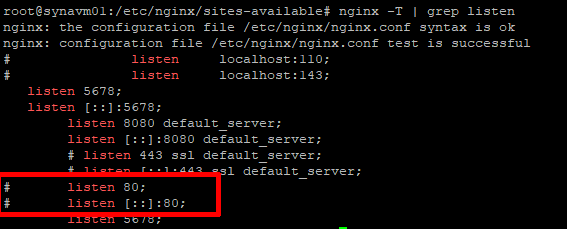 In the screenshot above, port 80 is not in use because of the '#' character.
Option #2: Disable/Uninstall Nginx
If you do not use Rainloop and do not want the home page to be displayed at all, follow the instructions below:- In the terminal, switch to the root user by entering the following command:
- Stop the Nginx server by running the following command:
sudo systemctl stop nginx - If you want to disable Nginx, run the following command:
sudo systemctl disable nginx - To uninstall Nginx, run the following commands:
sudo apt remove nginxsudo apt purge nginx nginx-common
Note: if the apt remove nginx command is stuck, run the following command:systemctl stop unattended-upgrades
then try again. Once it's uninstall, start the unattended-upgrades service again: - Nginx will now no longer be running.
sudo su
You will be prompted for a password. The password is:
secret010273
systemctl start unattended-upgrades
Optional: Remove Syncrify and SynaMan
If you are only using the VM for Xeams and want to remove Syncrify and SynaMan, follow the instructions below:- In the terminal, switch to the root user by entering the following command:
sudo su
You will be prompted for a password. The password is:secret010273 - Go to the installation directory of Syncrify by entering the following command:
cd /opt/Syncrify - You will first need to grant executable permission for the Uninstall.sh file. To do this, please enter the following command below:
chmod +x Uninstall.sh - Next, run the Uninstall.sh script by entering the following command:
./Uninstall.sh
This will uninstall Syncrify. - Go to the installation directory of SynaMan by entering the following command:
cd /opt/SynaMan - You will first need to grant executable permission for the Uninstall.sh file. To do this, please enter the following command below:
chmod +x Uninstall.sh - Next, run the Uninstall.sh script by entering the following command:
./Uninstall.sh
This will uninstall SynaMan.