
Configuring Thunderbird with Xeams for Sending and Receiving Emails
This page explains how to configure Thunderbird, a free and popular email client, with Xeams to send and receive emails.
Prerequisites
- You must have installed Xeams in either Stand-Alone or Hybrid mode.
- Create at least one user account. Go to Server Configuration > Manage Users to create user accounts.
- You must configure either POP3 or IMAP, or both servers in Xeams. Click the "gear" icon for the POP3 or IMAP Server Status box on the home page to configure these servers.
- Create an SSL certificate for your Xeams to ensure encrypted communication between Xeams and Thunderbird. Click Server Configuration > Manage SSL Certificate to create free SSL certificates.
Assumption
This article makes the following assumptions about your environment.
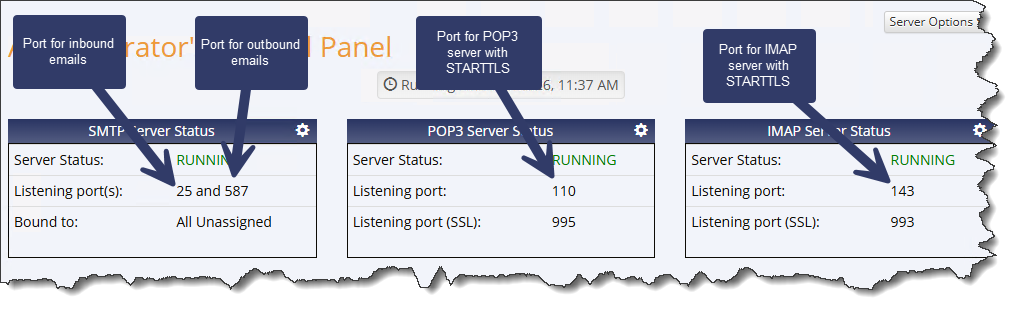
- You have enabled the IMAP server in Xeams, which is listening on TCP/IP port 143 for fetching emails from your Inbox.
- You have enabled port 587 under Server Configuration > SMTP Configuration to receive outbound emails.
- STARTTLS is enabled - meaning you have configured Xeams to use an SSL certificate and have enabled STARTTLS for IMAP and SMTP.
- You have a valid SSL certificate from Let's Encrypt.
- The fully qualified hostname of your Xeams server is mail.myserver.com. Replace this with the actual value.
- You're configuring a user that is identified by john.doe@mycompany.com. Replace this with the actual value.
- You have configured the firewall at the edge of your network to allow Internet traffic to the machine running Xeams on the necessary ports.
Once configured, the Home page on Xeams should look like the following screen.
Configuration Steps
- Download and install Mozilla Thunderbird if needed from Mozilla Thunderbird website.
- Once installed, you should come to a setup screen that looks like the following image.
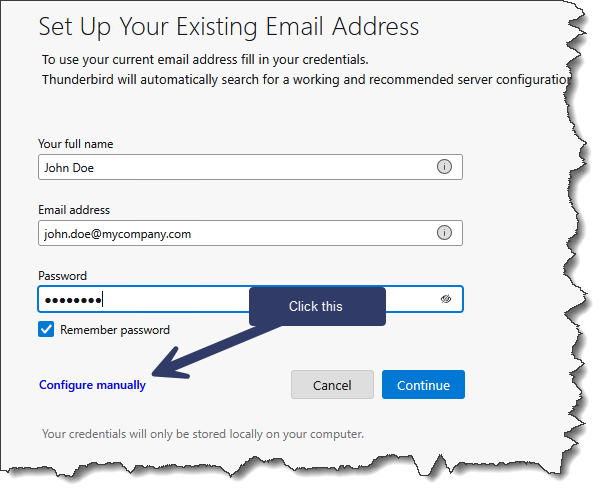
- Enter your name, the email address, which we assumed is john.doe@mycompany.com, and the password that you specified when creating an account in Xeams.
- Click the "Configure Manually" link, which opens up the section towards the bottom.
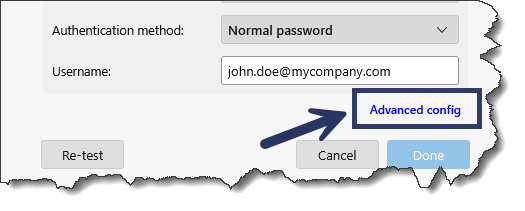
- Click the link for "Advanced config" as shown below.
- VERY IMPORTANT: Notice the use of STARTTLS, which means you have configured Xeams with an SSL certificate. Note that the IMAP server will not allow authentication unless the communication is encrypted. Therefore, you MUST configure the SSL in Xeams before trying to connect using a client.
- The Advanced screen will look like the following.
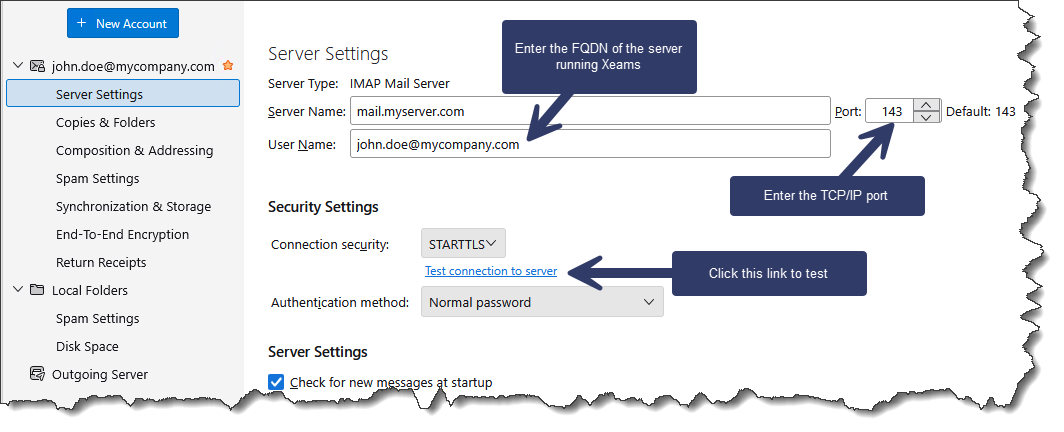
- Enter your FQDN value where Xeams is running and the port.
- Click Test connection to server to perform a test. You may have to add an exception if your SSL certificate is not trusted.
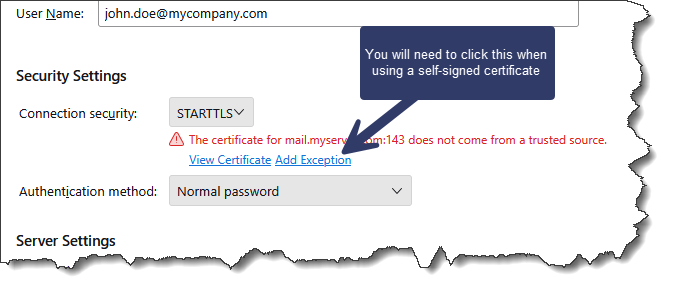
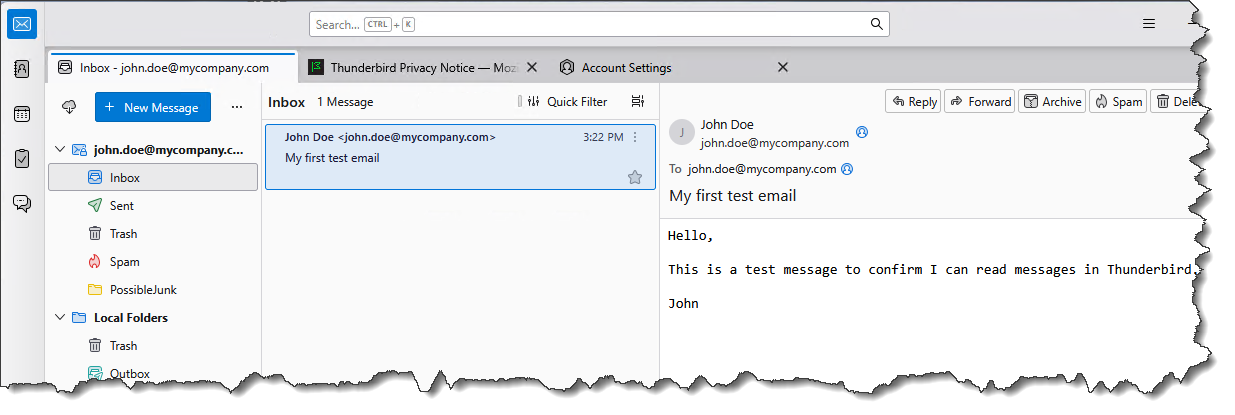
Accept the certificate warning on the following screen. - Finally, click the left-most tab for "Inbox". Try composing an email to yourself and confirm you see it back in your inbox, as shown below.
Troubleshooting Common Problems
You get a "Connection Refused" Error
You get the following error in Thunderbird:
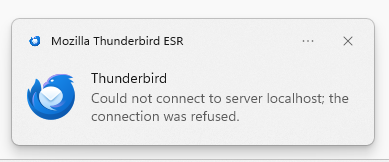
This error suggests that Thunderbird cannot connect to Xeams. Consider the following factors that can contribute to this problem.
- Xeams is down. Try connecting to the web interface to confirm it is running.
- The fully qualified host name (FQDN) is incorrectly specified in Thunderbird.
- The TCP/IP port for IMAP is configured to a different value than what you've configured in Thunderbird.
- A firewall is blocking the communication between Thunderbird and Xeams. Typically, there are two firewalls: one on the machine running Xeams and another at the edge of your network.
Use the following steps to confirm if Thunderbird is connecting to your Xeams.
- Log in as the administrator.
- Click Tools > View Logs.
- Select the IMAPConversation.log and click the Show Contents button.
- You should see the actual communication between Thunderbird and Xeams in this log file. If not, that indicates a network problem preventing Thunderbird from connecting to Xeams.
Thunderbird complains about incorrect password
Consider the following reasons if Thunderbird keeps complaining about the password being incorrect.
- The password is actually being typed incorrectly.
- Xeams can lock a user's account if too many incorrect password attempts are detected. To release a locked account, log in as the administrator, click Server Configuration > Manager Alerts, and check whether any IP address is blocked under the Password Alerts section.
- The Authentication Mechanism specified in Thunderbird is incorrect. Xeams supports "Normal password" and "Encrypted password" methods. Additionally, it will only accept the login after the connection is upgraded to use encryption. Therefore, confirm SSL is configured correctly in Xeams.